splat_forge_doc
Splat Forge Documentation
Splat Forge is an addon for using Gaussian Splats (3DGS) natively in Blender. It directly implements these in GLSL, giving native performance. This way your scene can easily handle millions of splats in realtime! It is compatible with both EEVEE and Cycles.
Watch the demo video here: YouTube Splat Forge Demo
Video Tutorial: https://youtu.be/h0C-8AtYZuM
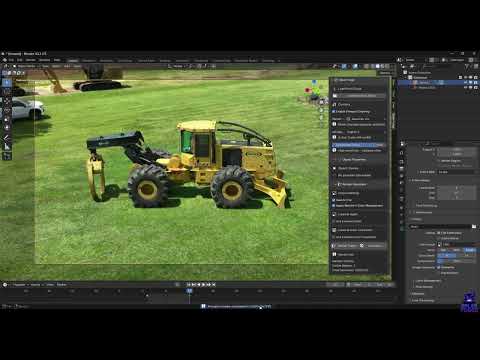
Install Splat Forge:
- After downloading the zip you can directly go into Blender -> Edit (Top Left) -> Preferences -> Addons -> Arrow in the top right that points down -> Install from disk -> Select the downloaded .zip file
Blender should automatically activate it and you will see a new tab in side panel (press N).
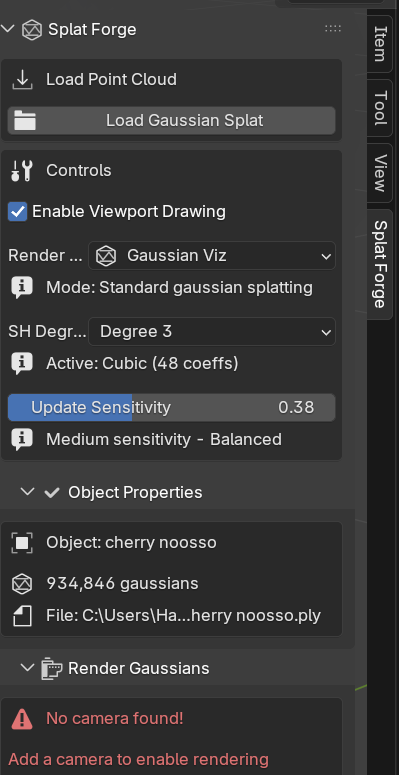
Loading a 3DGS
- Currently SplatForge supports two formats
.splatand.ply(not.compressed.plybut that’s coming soon!) - You can either load your file in the 3D Viewport with
Shift + A→Gaussian Splat - Or in the 3D Viewport on the right side, open the SplatForge tab, at the top
Load Gaussian Splat - Note: If your splat is large, Blender may “freeze” for a few seconds while loading.
Working with a Splat
- You can transform the splat like any regular object (translate, rotate, scale) or duplicate with
Shift + D - Hiding it in the viewport will only work on the object directly. Disabling the collection the gaussian splat is in, won’t work.
Disable in ViewportsandDisable in Renderswill also only work on the object directly
Changing the visualization mode
SplatForge supports 3 different visualization modes. These can also be rendered out.
Gaussian Viz: Proper visualization of the gaussian splats
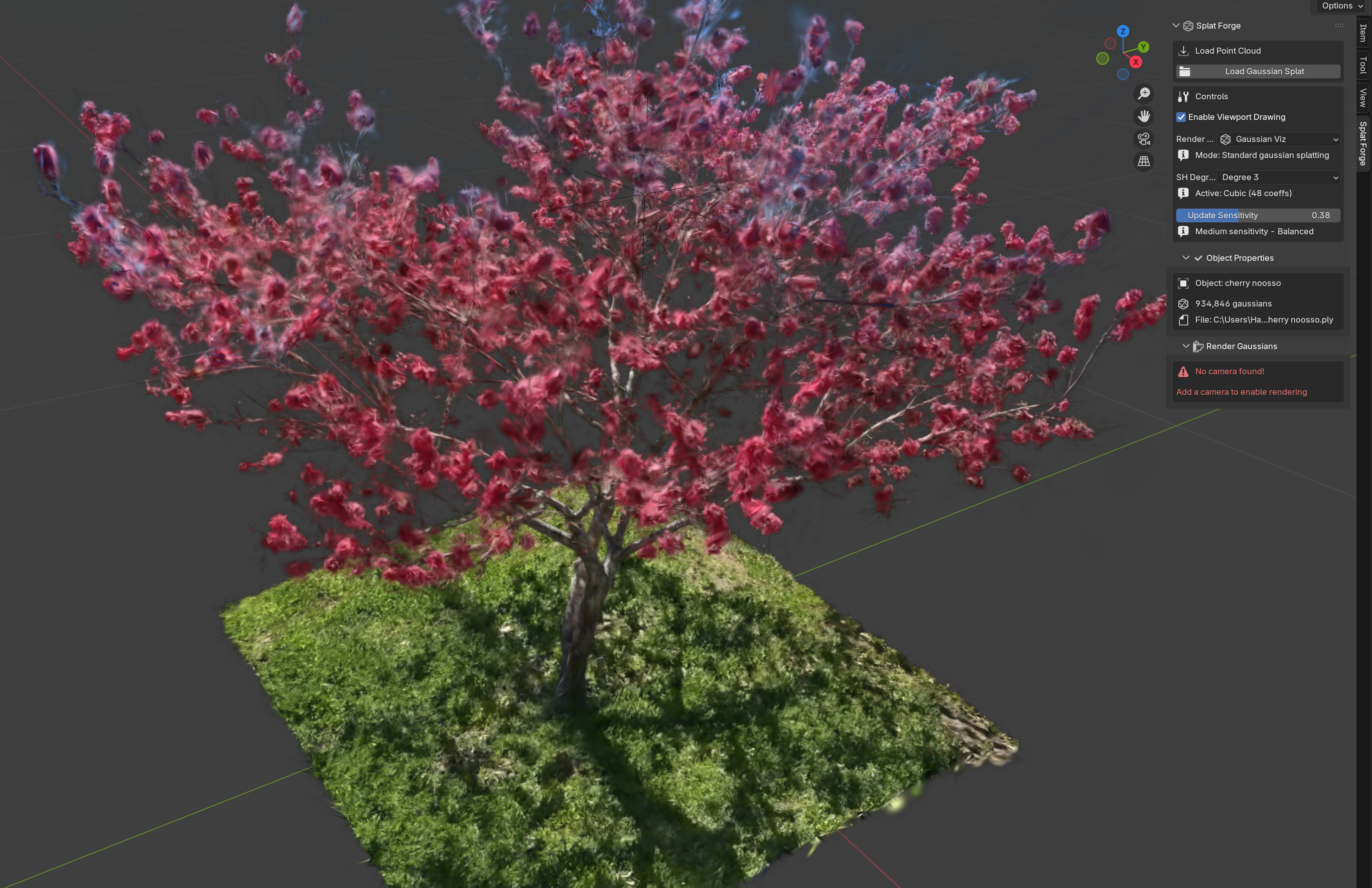
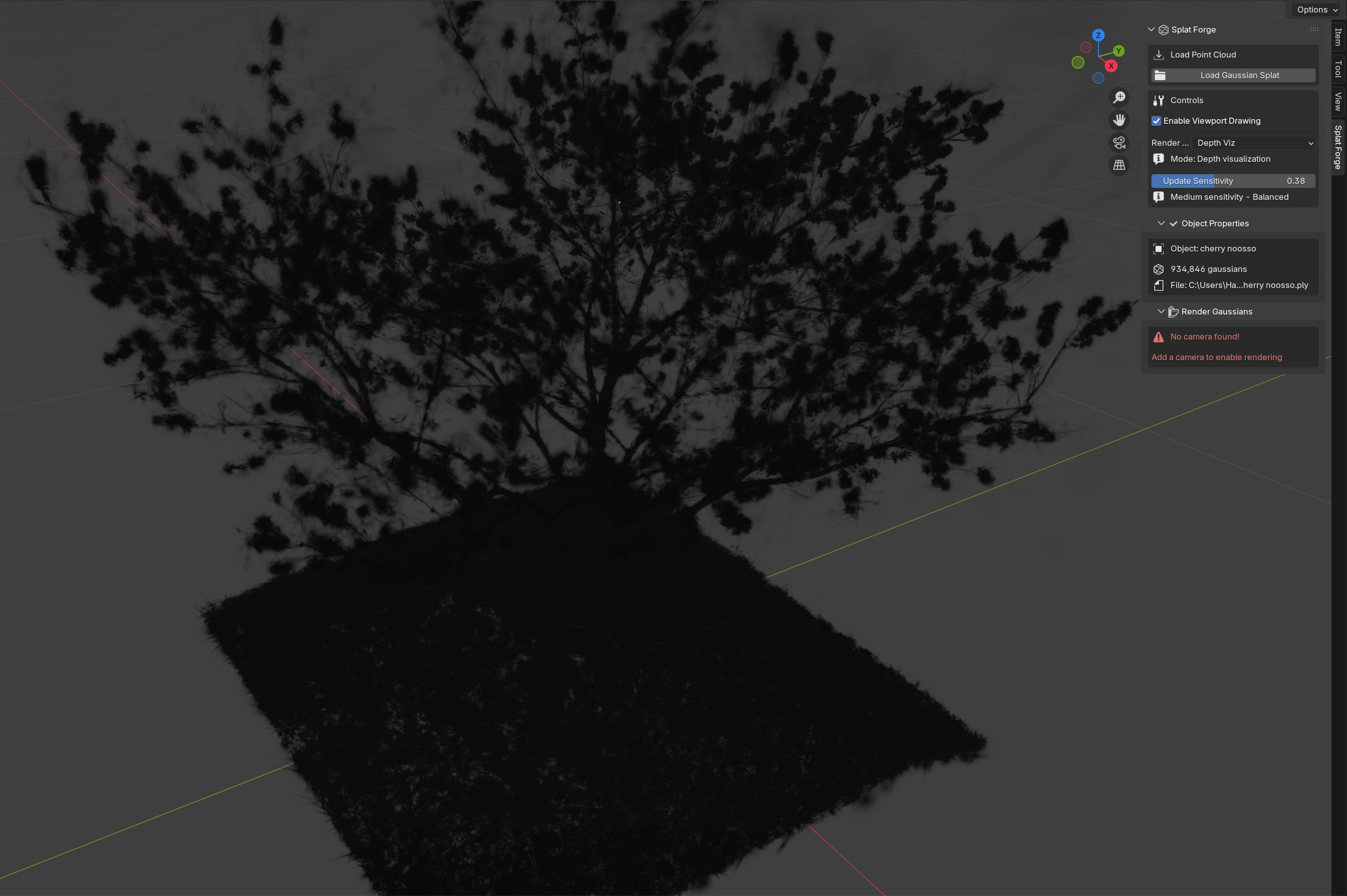
Depth Viz:
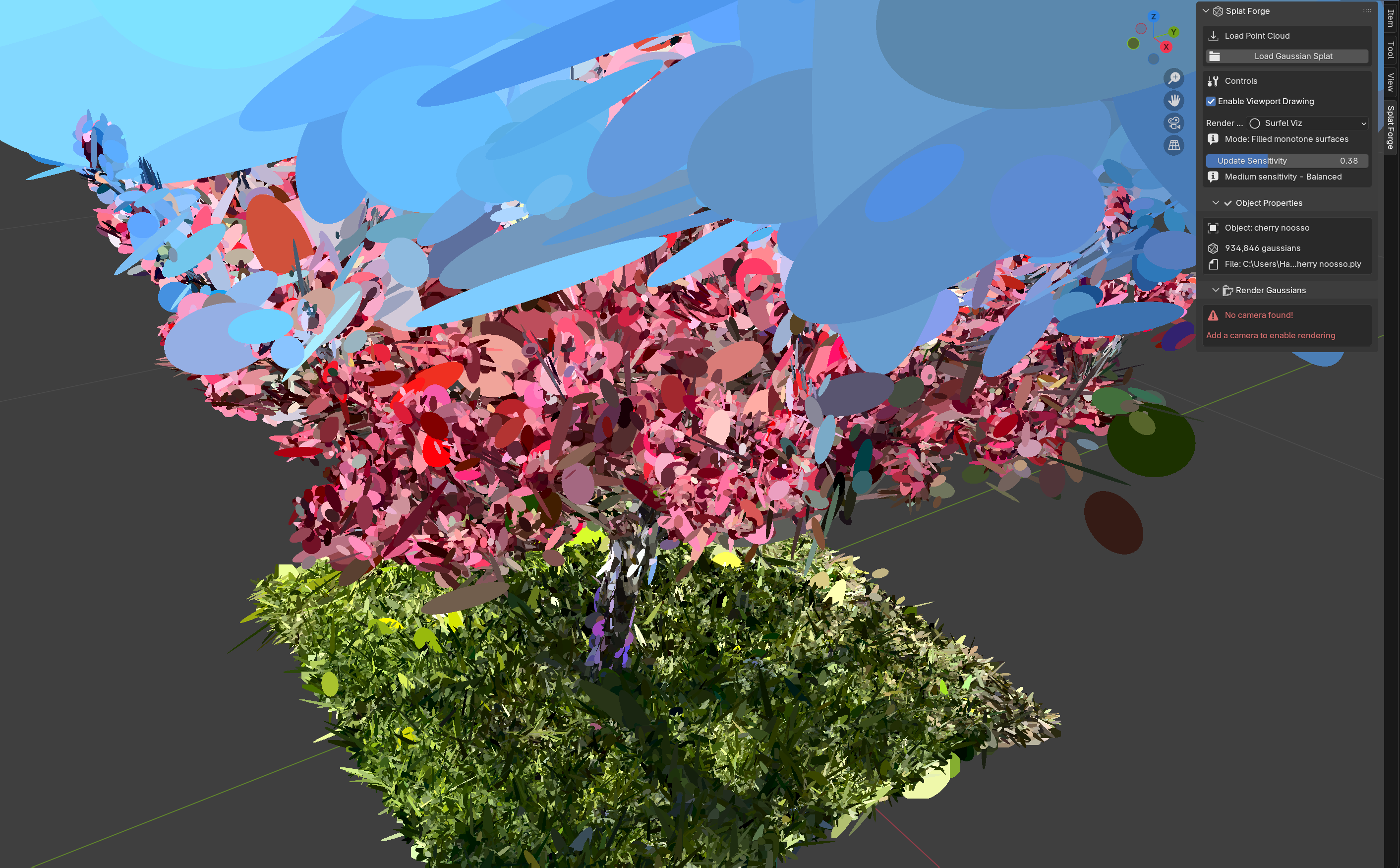
Surfel Viz: Shows all Gaussian splats as elliptical surfels with their original orientation.
Spherical Harmonics Degree
SplatForge supports spherical harmonics up to degree 3. You can change the rendering of the entire scene with the SH Degree dropdown. This can be useful if you want to get rid of reconstructed reflections that are camera angle dependent.
Update Sensitivity
Due to how Gaussian splats are rendered, they need to be sorted or they will look “wrong”. This sorting/updating is expensive but required for accurate visualization. You can adjust the sensitivity of how often this happens.
- Smaller numbers → fewer updates → scene less accurate
- Larger numbers → more updates → scene is more accurate
- 0 is the extreme case, you will start seeing artifacts as if you can see through objects but the performance will be better for scenes with several million gaussians
- Note: When rendering your scene, SplatForge will always use the most accurate setting.
Rendering
Due to Blender’s Python API limits, Gaussian splat rasterization cannot be directly integrated into the Blender render/composite workflow (F12). Fortunately, there are easy workarounds.
Rendering without Blender objects
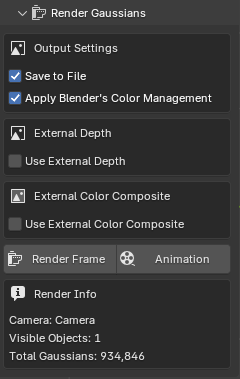
If your scene only consists of Gaussian splats, then you can directly animate your Gaussian splats/camera and render them either with Render Frame or Animation in the Render Gaussians section of the SplatForge tab. In this case, you can turn off external depth and external color composite.
The output path of the render is taken from Blender’s Output  Tab in the
 Properties Panel. The same you would adjust when outputting regular renders.
SplatForge will always output the color images into the folder Your/Path/From/The/Settings/sf_color. It will also output metric scene depth into sf_depth.
Rendering with Blender objects
SplatForge needs to know what the Blender scene looks like when creating the Gaussian splat frame. Many modifiers, Geo Nodes, and textures/shaders will affect an object’s geometry. Therefore, SplatForge needs to know the final render shape of the scene not just the viewport representation. For accurate interactions, we need to export this in the form of the Z-Pass before we can render the Gaussian splats.
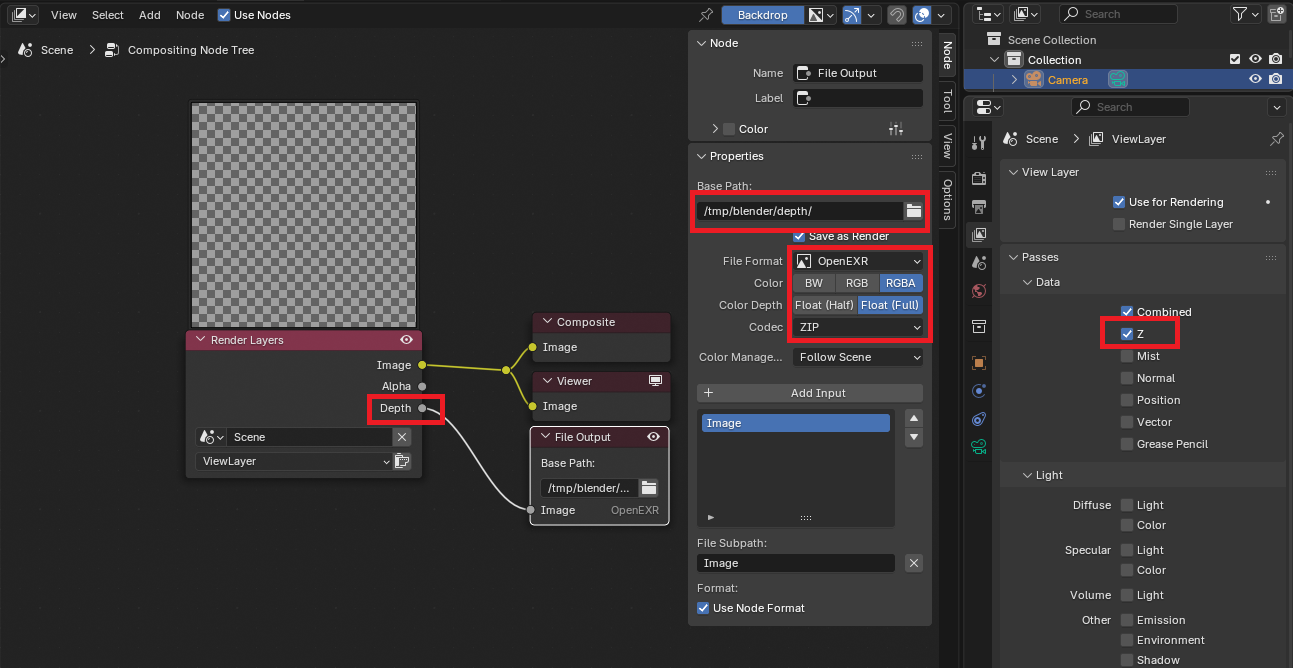
To do this, go in the Properties Panel to View Layer  and turn on
 Z in Passes -> Data.
Then go to the Compositing Workspace, Use Nodes and add a File Output node to the Depth of the Render Layers Node. Select the File Output Node and go into the node’s settings. There, change the base path to your desired location and the file format to OpenEXR (other file formats will corrupt the depth).
Now you can render your Blender scene as you are used to (e.g., with F12/Ctrl+F12) and Blender will output the Color/Combined Frames as well as the depth.
After the render is finished, go into Blender again and this time, in the SplatForge render settings, turn on Use External Depth and Use External Color Composite. If you rendered an animation, also tick the Is Image Sequence checkbox.
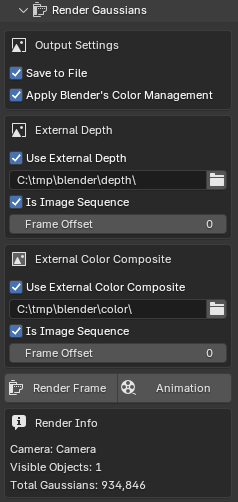
Set the two paths to where you rendered your Blender scene depth (path you set in the File Output) and Blender scene color (path you previously set in Output ). You can now hit the Render Frame or Animation button. SplatForge will render to the location set in Output , so you may want to change it before rendering the Gaussian splats.
Note: Open the console before rendering to see an estimate of how long rendering the Gaussians will take and the current progress.
SplatForge will create a folder called sf_composite, which contains your rendered out Blender scene combined with Gaussian splats.
Note: Use Frame Offset to use a different numbered image than the current frame number.
Rendering with Blender objects and custom compositing
In the above scenario, we let SplatForge do the compositing for us while it was rendering the scene. There are use cases (e.g., color correction, adding camera effects like haze or similar) where you want to do the compositing yourself, either in external programs or Blender.
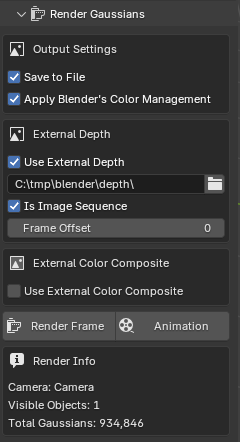
In this case, we still need to give SplatForge the depth (Use External Depth) but not the color. To get the depth, follow the instructions from Rendering with Blender objects
If you want to composite in Blender, a typical setup looks like this
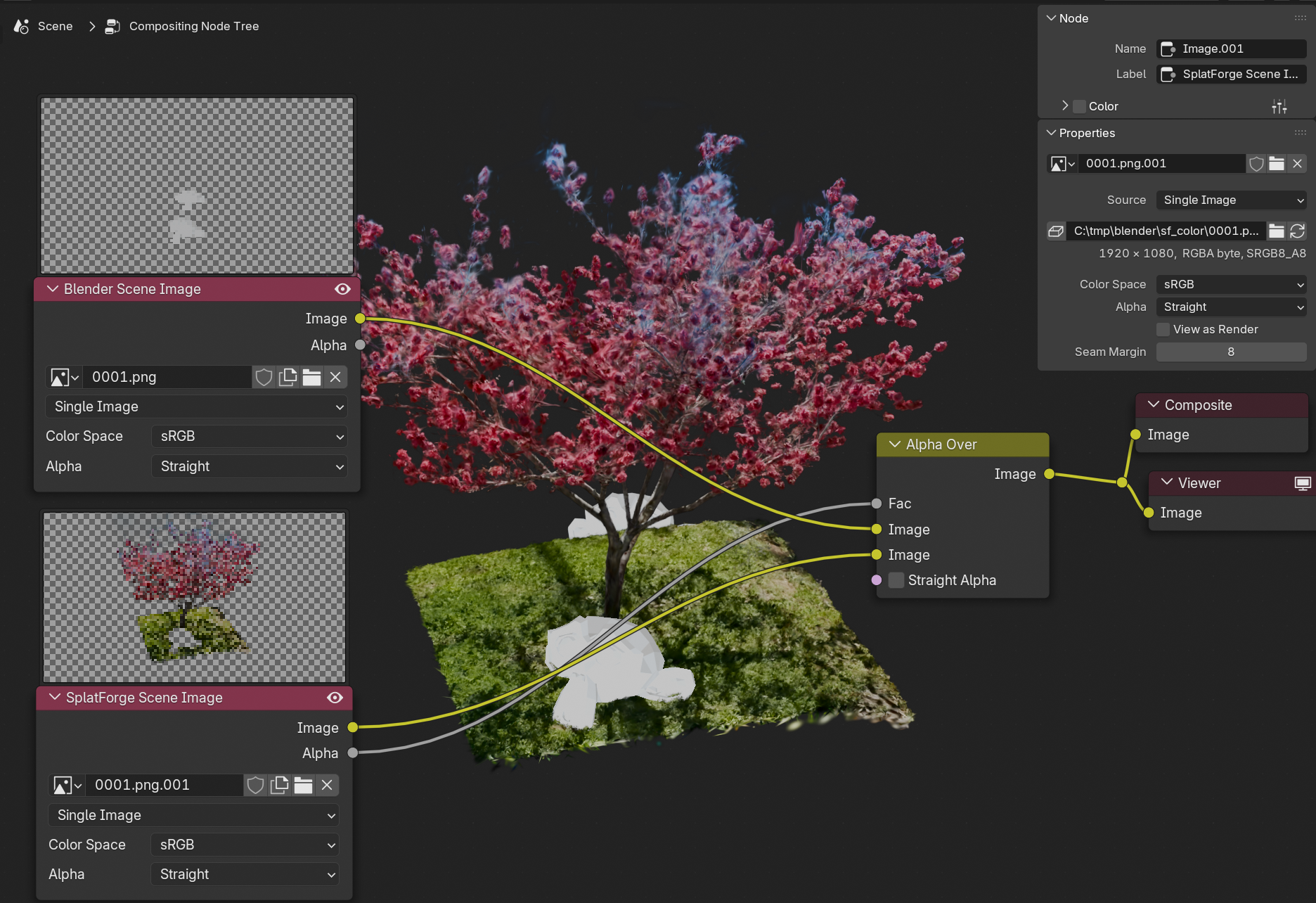 Here we don’t actually need to be in the blend file of the original scene since we are using Blender just for compositing images.
If you want to work with an animation you can also use
Here we don’t actually need to be in the blend file of the original scene since we are using Blender just for compositing images.
If you want to work with an animation you can also use Movie Clip Nodes as input. The depth images from the Blender render and the Gaussian Splat rasterization are only needed in advanced compositing cases.
Other Infos
- Pack into file won’t work, but SplatForge will auto-load any SplatForge objects that have been saved (it will remember the file path from where it was initially loaded). This also means that scenes with many Gaussian Splat objects will take Blender longer to load (appear to freeze).
- Because the Gaussian splats are not part of Blender’s rendering system but live in OpenGL/Vulkan/GLSL, the objects cannot interact with scene lighting
- A solution to this is in the works
- SplatForge does not support motion blur or depth of field blur yet
Known Issues
Fixes are on their way!
Known quirks
Reloading
As the Gaussian objects “live” in the GPU VRAM, certain modifications will trigger auto-reloading.
- Duplicating/renaming a Gaussian splat will cause it to be reloaded
Viewport Artifacts
- When moving the camera very fast, artifacts may appear. To reduce the amount of visible artifacts, increase the update rate. When rendering, no artifacts will appear because SplatForge updates before every frame automatically.
Large Models
- Too many Gaussians in the scene, will cause stuttering. Try reducing the update rate in the GUI to improve performance.
- Loading will take longer and longer the more Gaussian Splat Objects are in the scene. At about 8 millions Gaussian Splats in the scene, adding a new Gaussian Splat objects takes about one minute or longer. Blender will appear to be frozen during loading. Deleting Gaussian Splat objects will also cause Blender to freeze or a short time.
Known Bugs
- There is currently a limit of about 16 million Gaussians per scene. Adding more will cause a crash.
- Sometimes when duplicating/loading a Gaussian Splat Objects it won’t appear. This is a quirk from Blender’s API. Workaround: save the scene and reload it.
The shown Gaussian splat model in some of the screenshots is licensed under CC-BY-4.0 https://creativecommons.org/licenses/by/4.0 https://poly.cam/capture/0151341b-647f-4d29-884c-a21566bd4312